

ESXi Standalone Collector
The AIR standalone collector currently provides support for execution on ESXi 6.5+ systems.
VMware ESXi is a type of hypervisor, which is software that creates and runs virtual machines (VMs). It is a part of VMware’s vSphere product suite and is used for enterprise-level virtualization. ESXi is popular due to its stability, performance, and extensive feature set for managing and running virtual machines.
AIR offers a robust approach for evidence collection from ESXi platforms. DRONE is not currently supported for ESXi systems. This is achieved through a standalone ESXi collector, available for download on the Assets page of your AIR console:
Assets>Add New>Deploy New>Direct connection to AIR Console >ESXi
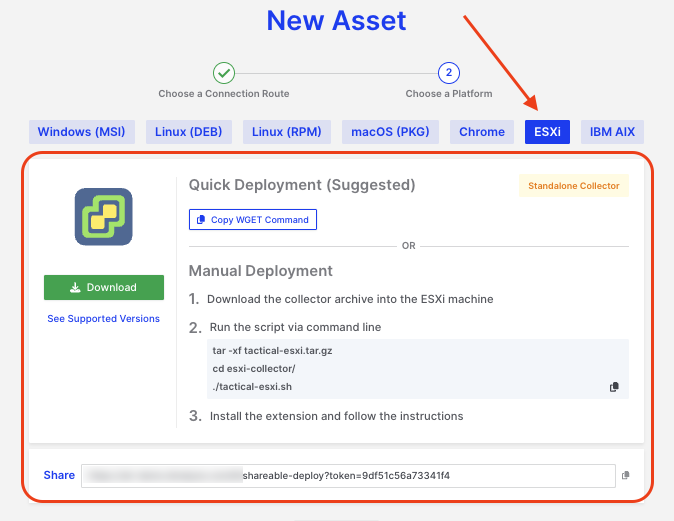
ESXi Standalone Collector: New Asset
After running Responder using your chosen method, the collected evidence should be converted into a PPC file. This PPC file can then be imported into the AIR Console. Once imported, the asset will be displayed alongside all other assets in AIR, ensuring seamless integration and visibility within the platform.
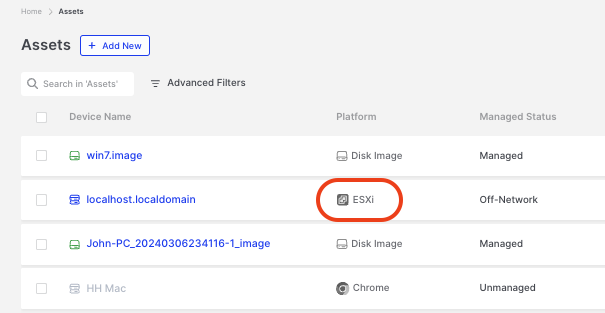
ESXi Standalone Collector: ESXi platform is shown on the AIR Asset page
After ingestion into AIR the ESXi evidence is parsed and pesented in the Investigation Hub in the normal way:
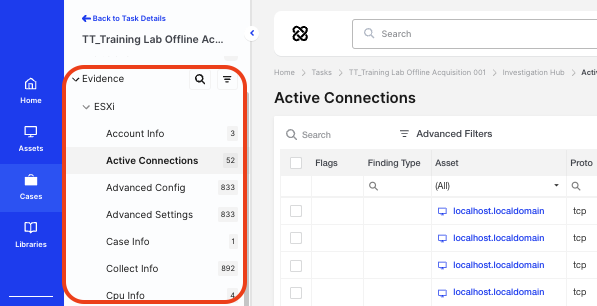
ESXi Standalone Collector: ESXi evidence in the Investigation Hub
However, you can if required decompress the tar.gz file to independently access and examine the evidence. Typically, the evidence will include the following: :
- System Info: Basic system information about the ESXi machine.
- Bash History: Command history executed on the Bash shell.
- Collect Bash Files: Gathering files associated with the Bash shell.
- Environment Variables: Variables defined in the system environment.
- Collect /etc Files: Gather files under the /etc directory.
- Log Files: Collecting various log files.
- SSH Config: Retrieves the configuration settings related to the SSH (Secure Shell) protocol.
- SSH Authorized Keys: Collects information about authorized SSH keys, which are used for secure authentication.
- SSH Known Hosts: Gathers details about known hosts in the context of SSH.
- File System Enumeration: Involves enumerating and collecting information about the file system on the ESXi machine.
Having run the binary the progress will be displayed in the user’s terminal/shell:
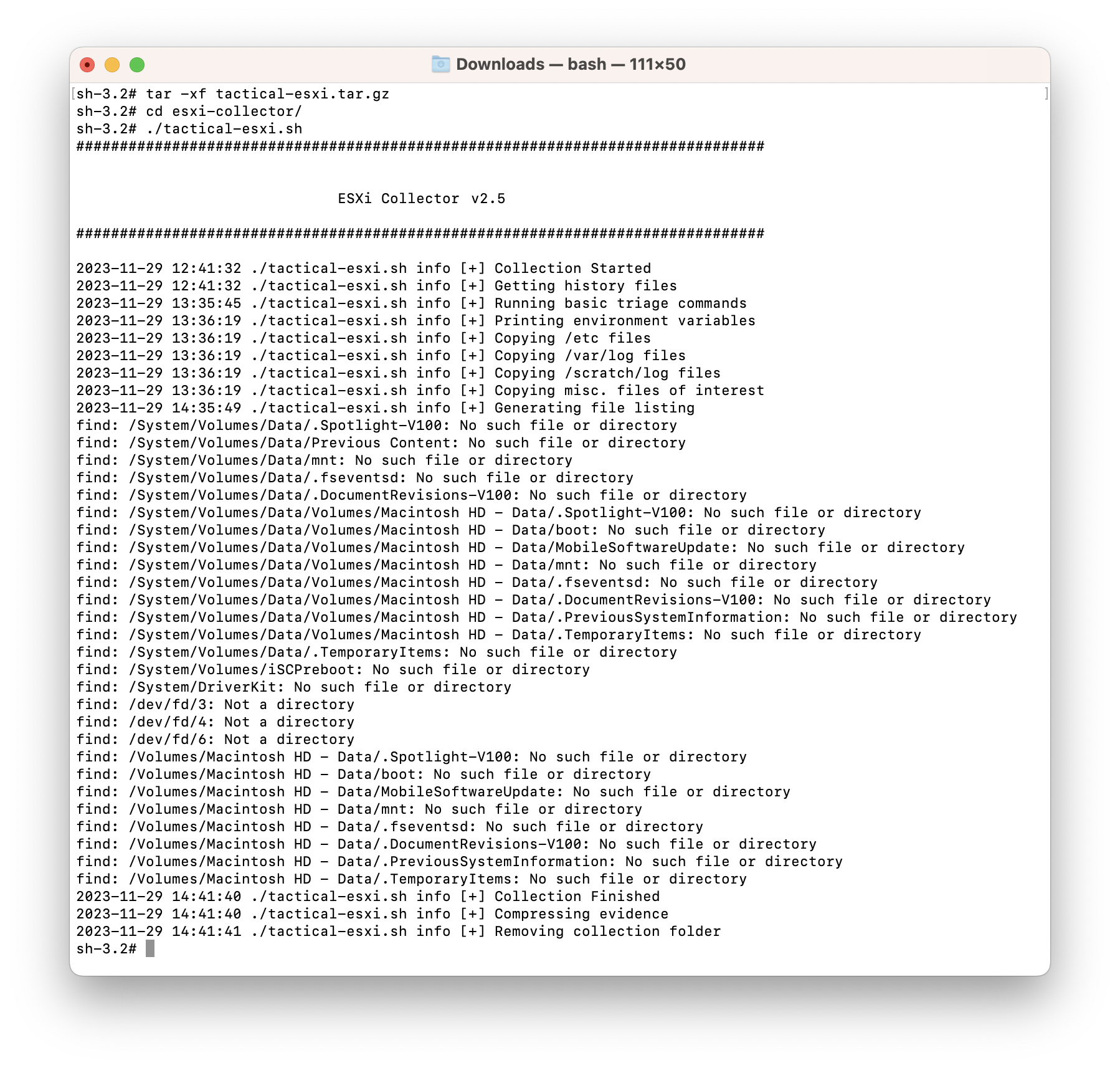
ESXi Standalone Collector: ESXi collection example
Full list of ESXi collected items
Section titled “Full list of ESXi collected items”File Collectors:
Section titled “File Collectors:”| ID | Collector Name | Collected Files |
|---|---|---|
| 1 | History Files | .ash_history, .bash_history, .sh_history, .tsch_history, .psql_history, .sqlite_history, .mysql_history, .vsql_history, .lesshst, .viminfo |
| 2 | Files of Interest | .bashrc, .bash_logout, .bash_login, .bash_profile .mkshrc, .pam_environment, .profile, .zshrc, authorized_keys, known_hosts, ssh_config |
| 3 | Cronjob Files | /etc/cron.hourly, /etc/cron.daily, /etc/cron.weekly, /etc/cron.monthly, /etc/cron.d |
| 4 | Cronjob Related Files | *If any executable file is found in crontabs, it is collected. |
| 5 | /etc Collector | All files under /etc is collected |
| 6 | Log Files | All files under /var/log and /scratch/log is collected |
| 7 | Spool Files | All files under /var/spool is collected |
Hunt/Triage Collectors
Section titled “Hunt/Triage Collectors”| ID | Collector Name |
|---|---|
| 1 | Process Snapshot Detailed |
| 2 | Process Snapshot Verbose |
| 3 | Open Files |
| 4 | User Info |
| 5 | Disk Usage |
| 6 | Disk Usage By User |
| 7 | Disk Usage Human Readable |
| 8 | System Hostname |
| 9 | VMware Version |
| 10 | System Info |
| 11 | Shell Aliases |
| 12 | Environment Variables |
| 13 | ESX Advanced Configuration |
| 14 | ESX FCoE Configuration |
| 15 | ESX FCoE Networking |
| 16 | ESX IPSec Configuration |
| 17 | ESX IPsec Policy |
| 18 | ESX Module List |
| 19 | ESX Module Query |
| 20 | ESX Multipathing Info |
| 21 | ESX NAS Configuration |
| 22 | ESX Network Interface Cards |
| 23 | ESX Routing Table |
| 24 | ESX Network Routes |
| 25 | ESX IPv6 Routing Table |
| 26 | ESX IPv6 Network Routes |
| 27 | ESX SCSI Devices List |
| 28 | ESX VMKnic List |
| 29 | ESX Volume List |
| 30 | ESX VSwitch List |
| 31 | ESX Configuration Info |
| 32 | List all of the CPUs on this host. |
| 33 | List usb devices and their passthrough status. |
| 34 | List the boot device order, if available, for this host. |
| 35 | Display the current hardware clock time. |
| 36 | Get information about memory. |
| 37 | List all of the PCI devices on this host. |
| 38 | Get information about the platform. |
| 39 | Information about the status of trusted boot. (TPM, DRTM status). |
| 40 | List active TCP/IP connections. |
| 41 | List configured IPv4 routes. |
| 42 | List configured IPv6 routes. |
| 43 | List ARP table entries. |
| 44 | List the VMkernel network interfaces currently known to the system. |
| 45 | List configured Security Associations. |
| 46 | List configured Security Policys. |
| 47 | Print a list of the DNS server currently configured on the system in the order in which they will be used. |
| 48 | List the rulesets in firewall. |
| 49 | List the Physical NICs currently installed and loaded on the system. |
| 50 | List the virtual switches current on the ESXi host. |
| 51 | Hostname |
| 52 | Get Open Network Files |
| 53 | Get Unix Socket Files |
| 54 | Get the network configuration. |
| 55 | Get the DNS configuration. |
| 56 | Get the IP forwarding table. |
| 57 | Gets information about virtual NICs. |
| 58 | Displays information about virtual switches. |
| 59 | Lists the installed VIB packages. |
| 60 | Gets the host acceptance level. This controls what VIBs will be allowed on a host. |
| 61 | Display the installed image profile. |
| 62 | List the VMkernel UserWorld processes currently on the host. |
| 63 | Collect the list open files. |
| 64 | Report a snapshot of the current processes including used time, verbose, session ID and process group, state and type. |
| 65 | List the NAS volumes currently known to the ESX host. |
| 66 | List the NFS v4.1 volumes currently known to the ESX host. |
| 67 | List the volumes available to the host. This includes VMFS, NAS, VFAT and UFS partitions. |
| 68 | Display the mapping of logical volumes with physical disks. |
| 69 | List the VMkernel modules that the system knows about. |
| 70 | List the enforcement level for each domain. |
| 71 | Get FIPS140 mode of ssh. |
| 72 | Get FIPS140 mode of rhttpproxy. |
| 73 | List the advanced options available from the VMkernel. |
| 74 | List VMkernel kernel settings. |
| 75 | Display the date and time when this system was first installed. Value will not change on subsequent updates. |
| 76 | Show the current global syslog configuration values. |
| 77 | Show the currently configured sub-loggers. |
| 78 | Display WBEM Agent configuration. |
| 79 | List local user accounts. |
| 80 | Display the current system clock parameters. |
| 81 | List permissions defined on the host. |
| 82 | Display the product name, version and build information. |
| 83 | List networking information for the VM’s that have active ports. |
| 84 | List the virtual machines on this system. This command currently will only list running VMs on the system. |
| 85 | Get the list of virtual machines on the host. |
| 86 | List Summary status from the vm. |
| 87 | Configuration object for the vm. |
| 88 | Virtual devices for the vm. |
| 89 | Datastores for all virtual machines. |
| 90 | List of networks for all virtual machines. |
| 91 | List registered VMs. |
Other Collectors:
Section titled “Other Collectors:”| ID | Collector Name | Description |
|---|---|---|
| 1 | File Listing | All files in the system is enumerated with following infos; |
| 2 | Executable Hashes | All files’ MD5 hashes that has executable permission in the system is collected |