

Submitting Feedback
AIR includes a built-in feedback mechanism that allows analysts to share insights, report issues, and ask questions directly from within the Console. All submissions are sent securely to the internal support channel for review.
Accessing the Feedback Form
Section titled “Accessing the Feedback Form”The Feedback button is accessible from within the AIR Console. Look for the Feedback icon, which is typically located in the bottom-right corner of the interface.
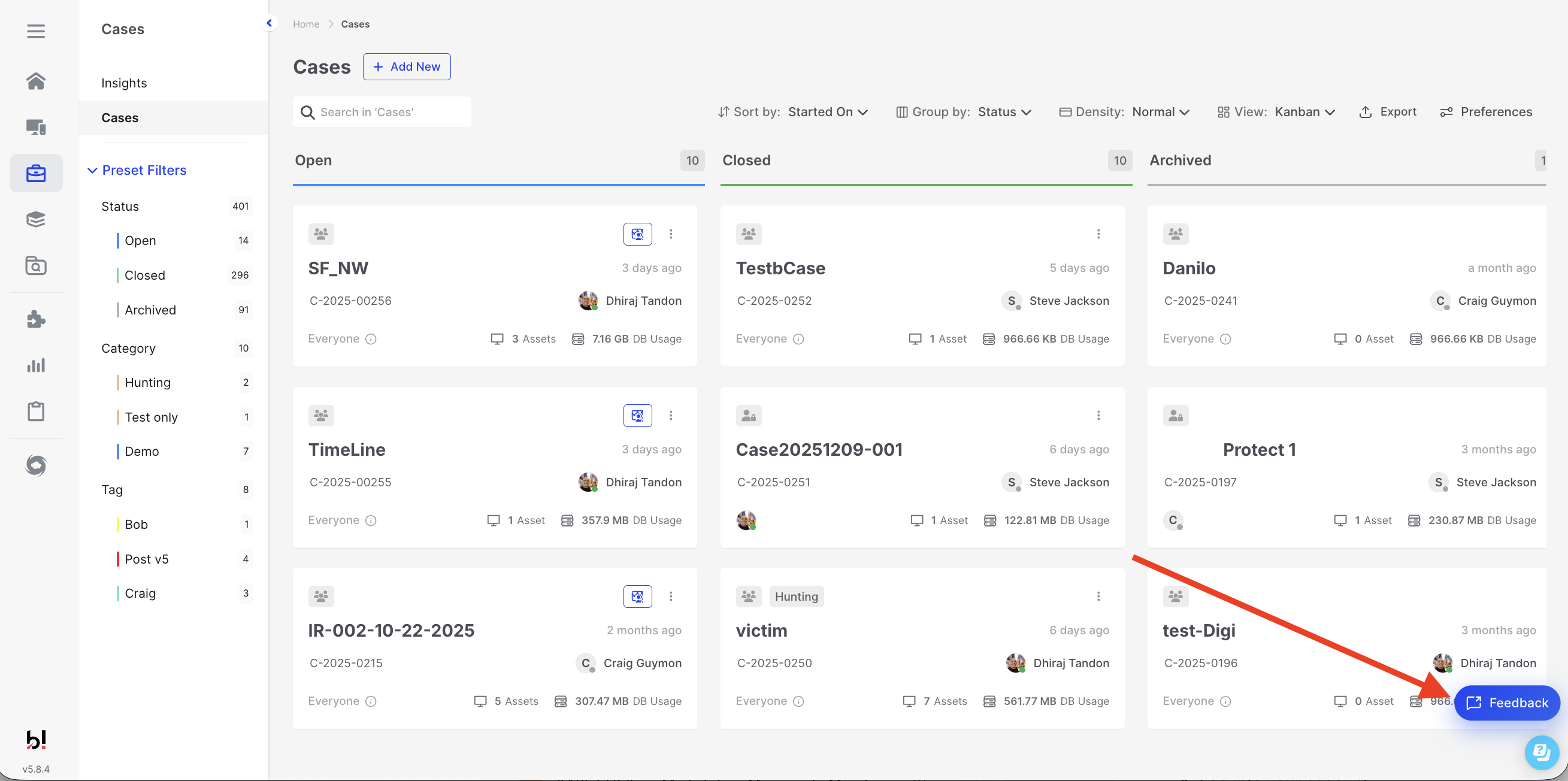
Submitting Feedback: Accessing the Feedback button from the Console
Feedback Types
Section titled “Feedback Types”When submitting feedback, select the type that best describes your submission:
| Type | Use When |
|---|---|
| Feedback | You have suggestions, ideas, or general comments about AIR |
| Bug Report | You’ve encountered an issue or unexpected behavior |
| Question | You need clarification or have a query about functionality |
Submitting Your Feedback
Section titled “Submitting Your Feedback”Click the Feedback button to open the submission form:
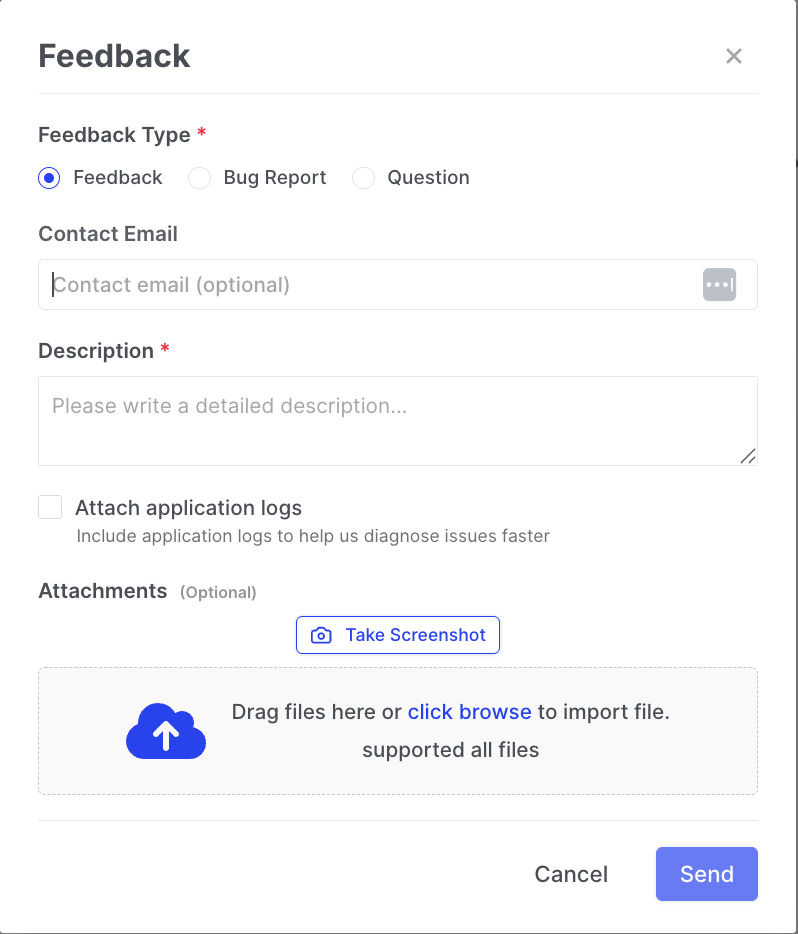
Submitting Feedback: The Feedback submission form
Complete the form with the following information:
- Feedback Type - Select Feedback, Bug Report, or Question
- Contact Email - Automatically populated with your logged-in user’s email address; can be edited if needed
- Description - Provide a detailed description of your feedback, issue, or question
Attaching Additional Information
Section titled “Attaching Additional Information”To help the support team understand and address your submission more effectively, you can include:
- Application Logs - Check the “Attach application logs” option to automatically include diagnostic information
- Screenshots - Click “Take Screenshot” to capture the current screen, or drag and drop existing image files
- Files - Drag and drop or browse to attach any relevant files
Submission Limits
Section titled “Submission Limits”Each user may submit feedback up to five times per day. This helps ensure all submissions receive appropriate attention from the support team.
What Happens Next
Section titled “What Happens Next”Once submitted, your feedback is securely transmitted to the AIR support channel where it will be reviewed by the team. For bug reports and questions, you may be contacted at your provided email address for follow-up information or resolution updates.