

Organization Settings
Organizational Controls
Section titled “Organizational Controls”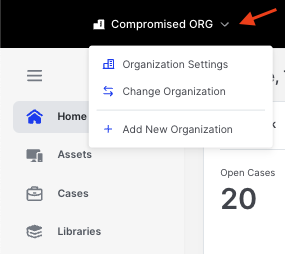
Organization Settings: Access via the top bar
From the top bar, the drop-down allows the user to select:
- Organization Settings
- Switch Organizations
- Add new Organizations
Organization Overview
Section titled “Organization Overview”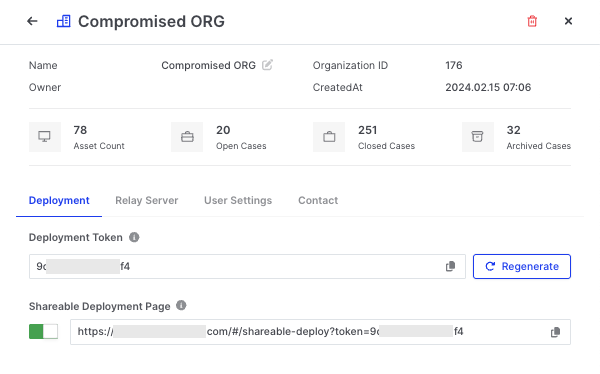
Organization Settings: Overview
When viewing an Organization, you’ll see key details like:
- Name, ID, Owner
- Created At timestamp
- Asset count, and case stats (Open, Closed, Archived)
Configuration Tabs
Section titled “Configuration Tabs”Each Organization has four main configuration areas:
1. Deployment
Section titled “1. Deployment”- Displays the Organization’s deployment token
- Includes a Shareable Deployment Page for fast responder distribution
- The link can be regenerated or disabled from this view
2. Relay Server
Section titled “2. Relay Server”- Manage Relay Servers used to support off-network response
- Includes search and “New Relay” functions
3. User Settings
Section titled “3. User Settings”- View and manage users, roles, and groups
- Use the Assign Users button to add new team members
4. Contact
Section titled “4. Contact”- Optional form fields for storing the Organization’s contact name, title, and phone number
Use Cases
Section titled “Use Cases”Organizations help:
- MSSPs manage multiple customers
- Enterprises segment data by business unit, region, or compliance zone
- Security teams isolate cloud, on-prem, and off-network assets
Access & Policy Enforcement
Section titled “Access & Policy Enforcement”- Policies can be global or overridden at the Organization level
- Shareable deployment links and responder access are organization-scoped
- User roles support granular privileges
Summary
Section titled “Summary”Organization Settings are central to structuring your AIR environment securely and efficiently. They govern deployment, user access, case management, and responder scope, all from a single, intuitive interface.